Jisha Launcher
A clean, ad-free home screen for older Amazon Fire TV Sticks. Your apps, your order, nothing else. And it stays your home screen when you press Home or restart the TV.
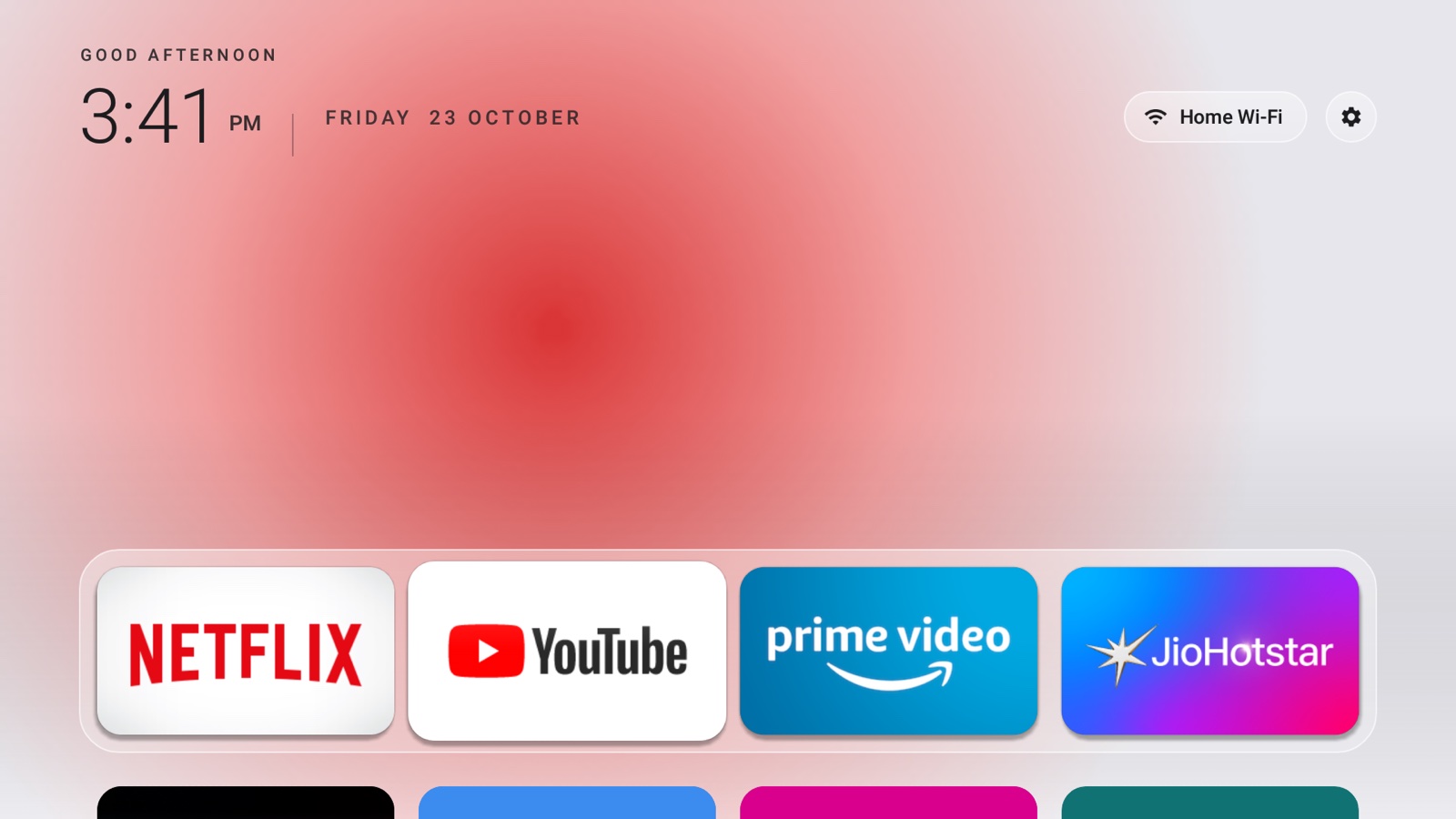
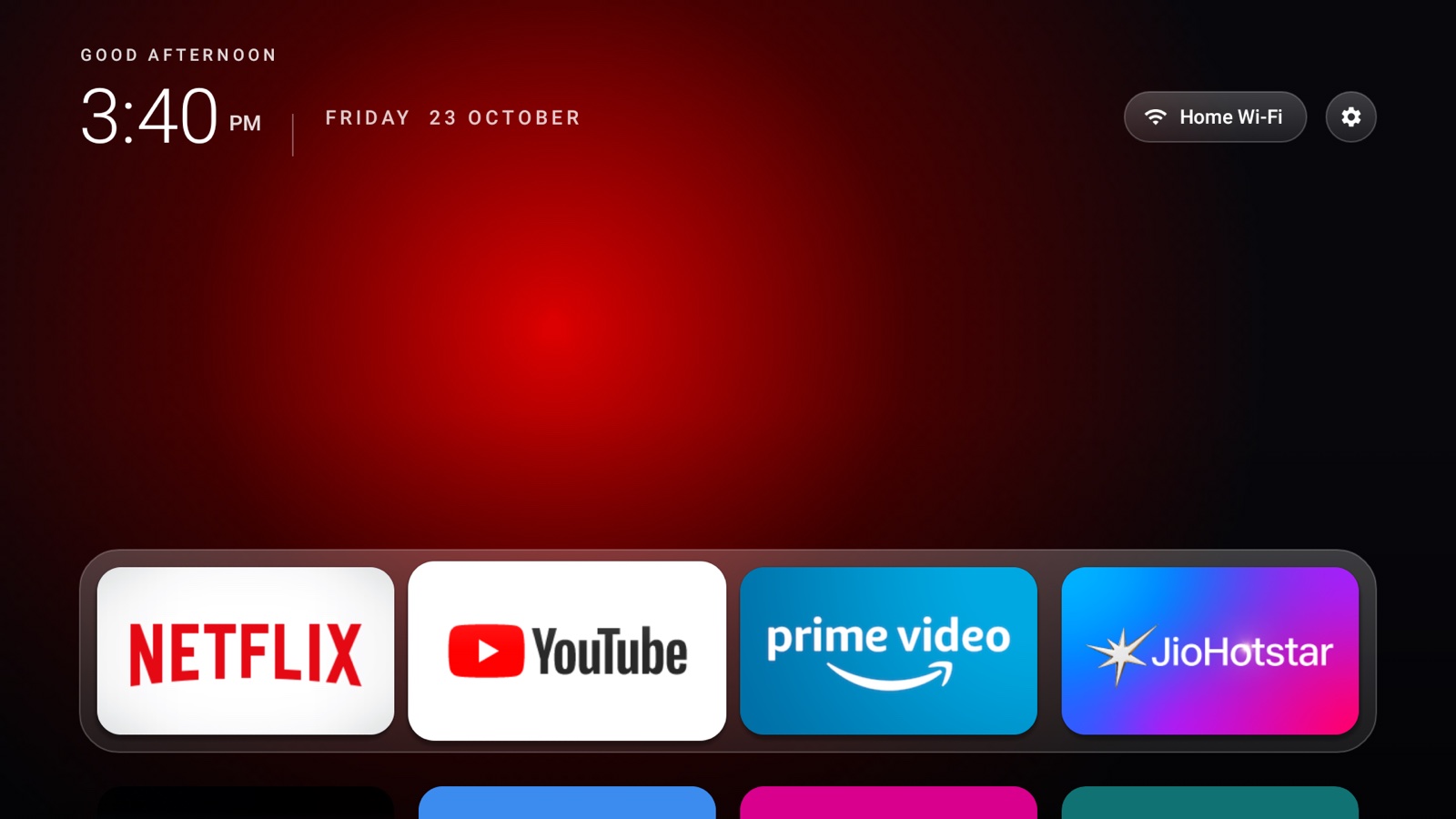
The stock home screen had become an ad board
On a 2016 Fire TV Stick, Amazon's home screen is mostly sponsored banners, autoplaying trailers and shopping rows. It also uses more memory than anything else on a stick that only has about 875 MB, which makes the whole TV slow.
We wanted the opposite: open the TV and see just the apps we actually use, fast, with nothing trying to sell us something.
Why existing launchers don't work here
Installing another launcher is easy. Getting the TV to actually use it is the hard part. Amazon blocks every normal way to change the home screen, and the tools that work around that don't cover older Fire OS versions.
| Option | What it is | Why it falls short |
|---|---|---|
| Wolf Launcher, ATV Launcher, FLauncher | Third-party home screens | They install fine, but the Home button and restarts still go to Amazon's home. You have to open the launcher like a normal app every time. |
| FTVLaunchX, LauncherHijack | Home-button redirect tools | They rely on an accessibility service. On Fire OS 5.2.9.5 the system switches that service off as soon as it's enabled, and these tools stopped working on Fire OS 6.2.7.2 and later. |
| Home on Fire | Newer redirect tool | Made for Fire OS 7 and 8. It doesn't support the older sticks. |
| Custom ROMs (LineageOS) | Replace Fire OS entirely | Needs opening the stick and shorting the board. It can brick the device, and many streaming apps stop working. |
What makes Jisha unique
Owns the Home button
Jisha doesn't fight Fire OS. It notices Amazon's home screen starting and covers it instantly, so pressing Home lands on Jisha. No accessibility service, no root.
No 5-second wait
Fire OS blocks other apps for 5 seconds after Home is pressed. Jisha draws its screen as an overlay during that window, so you can browse and pick an app straight away.
Built for 1 GB of RAM
A 100 KB native app with no web views or heavy frameworks. Background blurs are drawn once and scaled, so animations stay smooth on a 2016 chip.
Everything on the screen
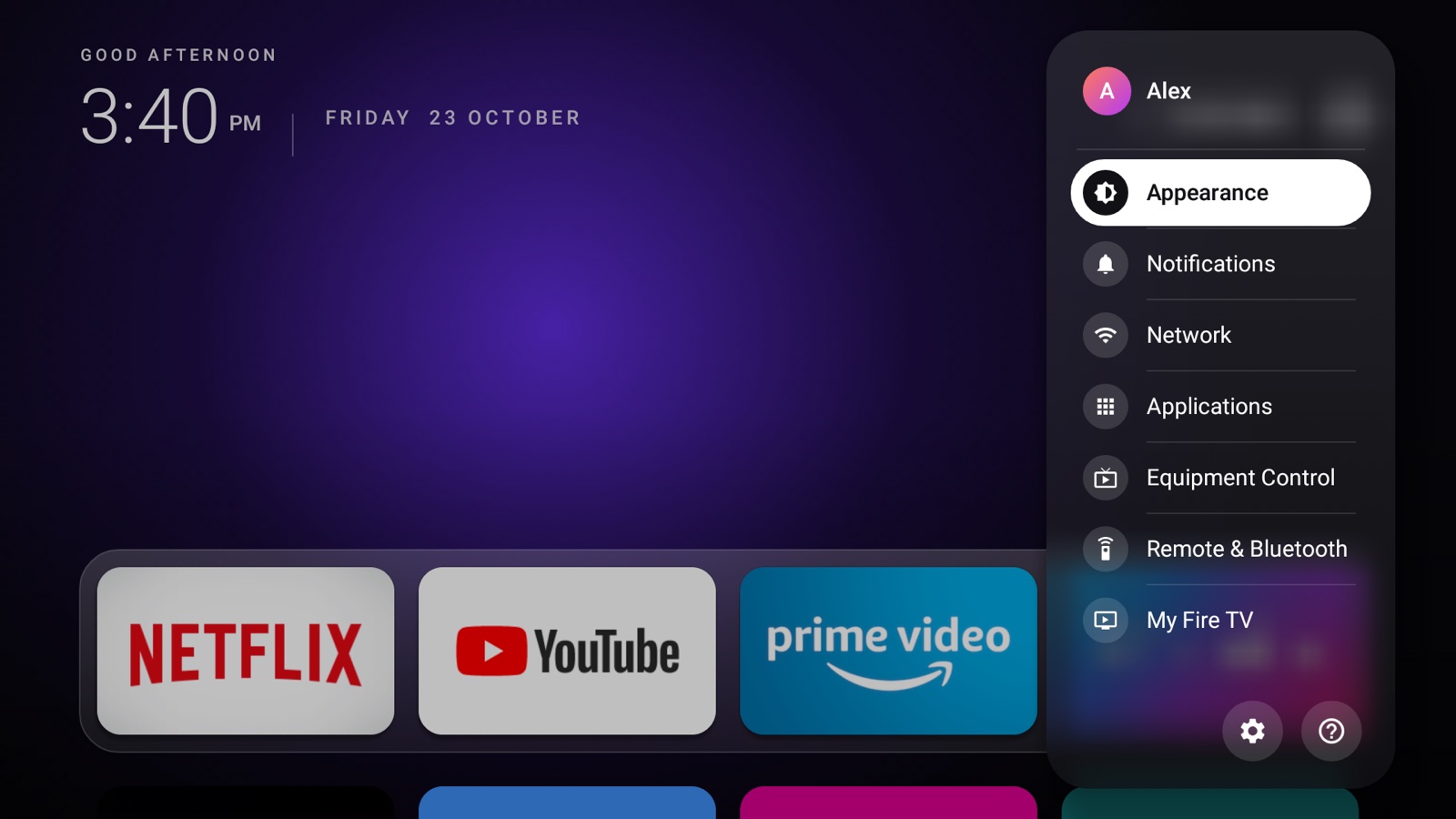
Glass dock
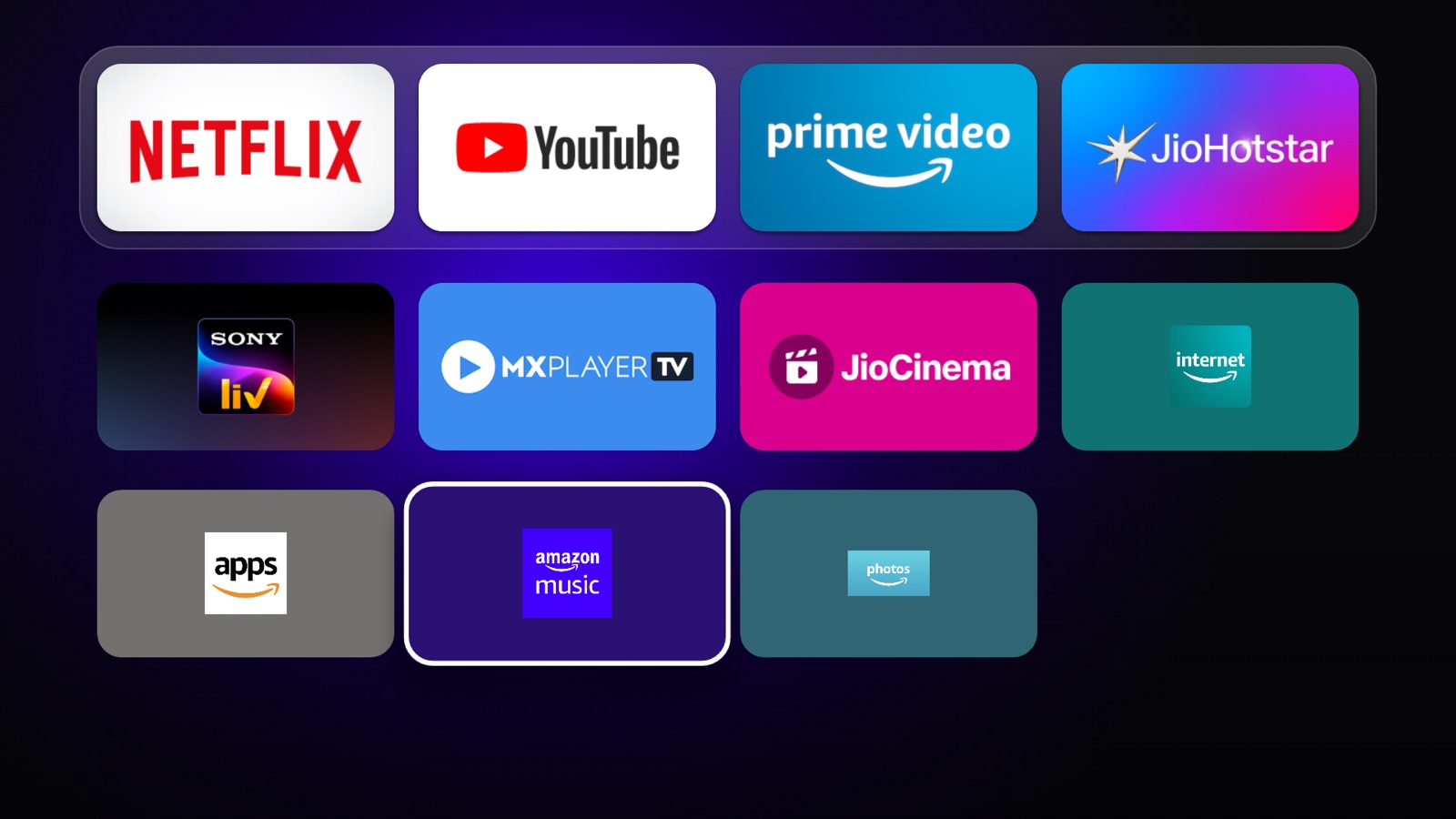
Your four favourite apps sit in a frosted-glass tray. The rest appear in rows below, and scrolling to the third row slides the whole screen up.
Remembers where you were
Press Home after watching YouTube and focus is back on YouTube. Same for the Wi-Fi and Settings buttons.
Recent Apps
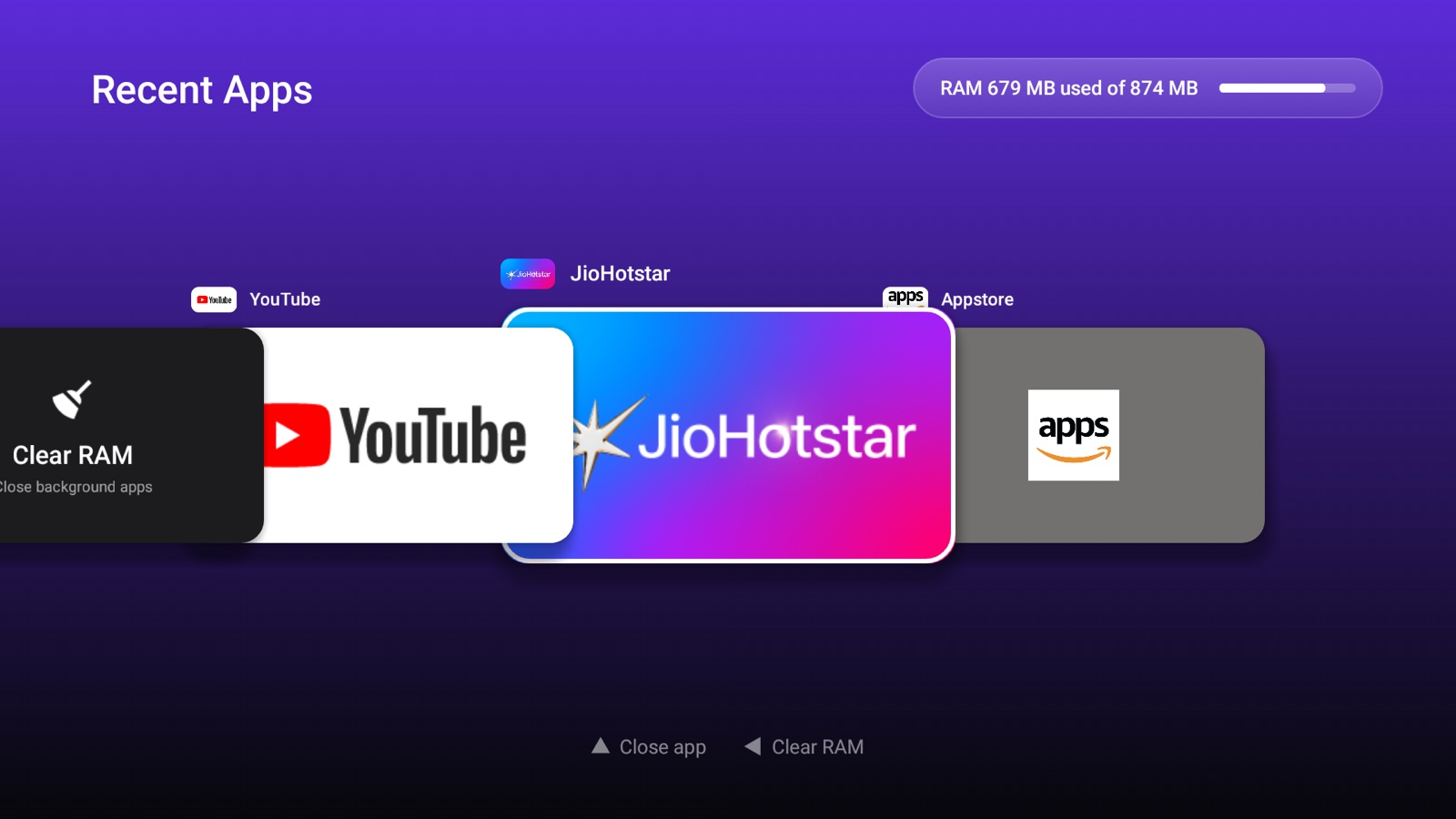
Double-press Home from any app to see what's open, stacked like cards. Press Up to close an app.
Clear RAM
One tile in Recent Apps closes everything in the background and tells you how much memory it freed.
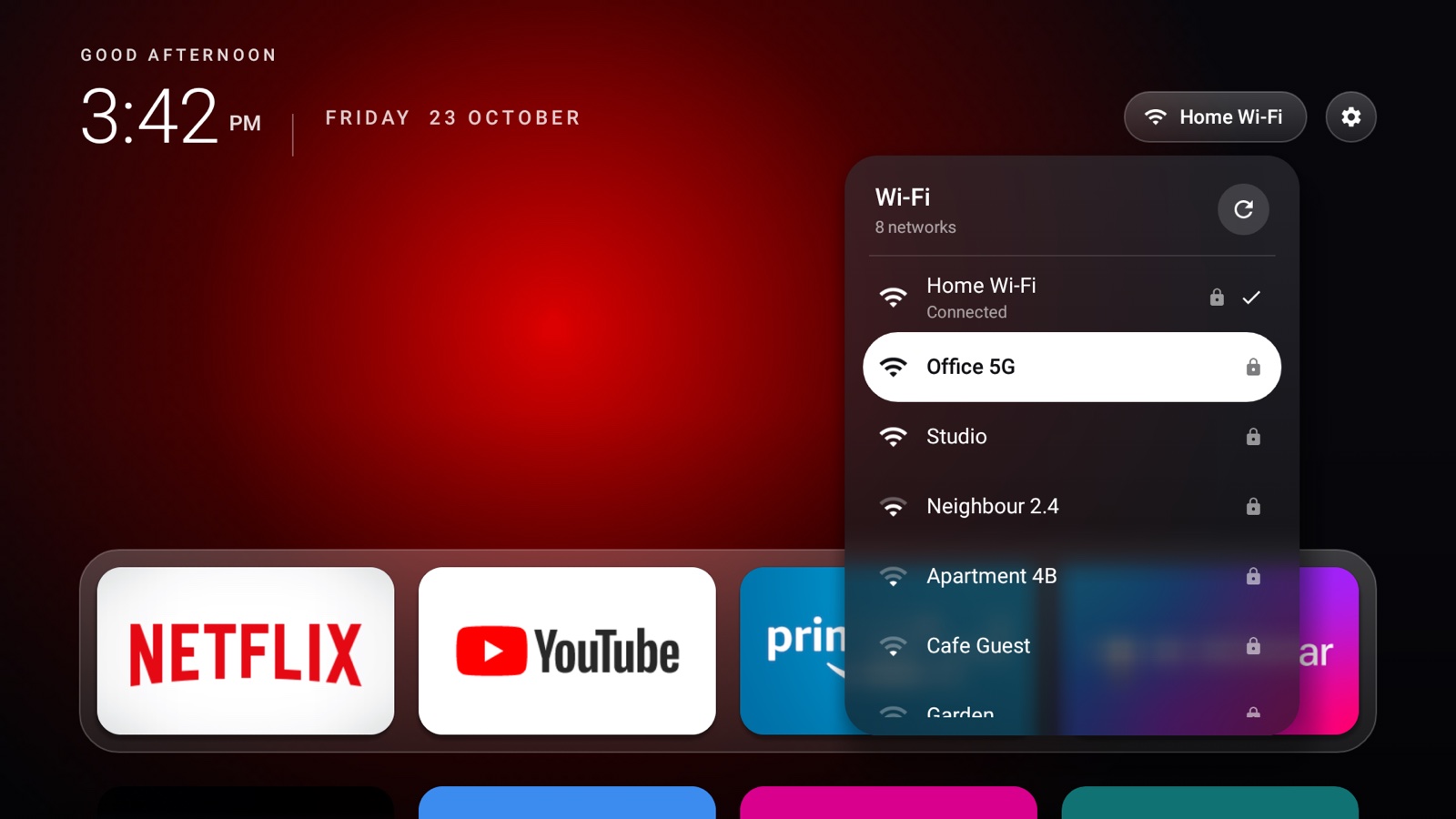
Wi-Fi dropdown
Nearby networks with live signal strength. Join a new network with its password without leaving the home screen.
Settings menu
A glass side menu with direct links to Notifications, Network, Applications, Equipment Control, Remote & Bluetooth and My Fire TV.
Control Center
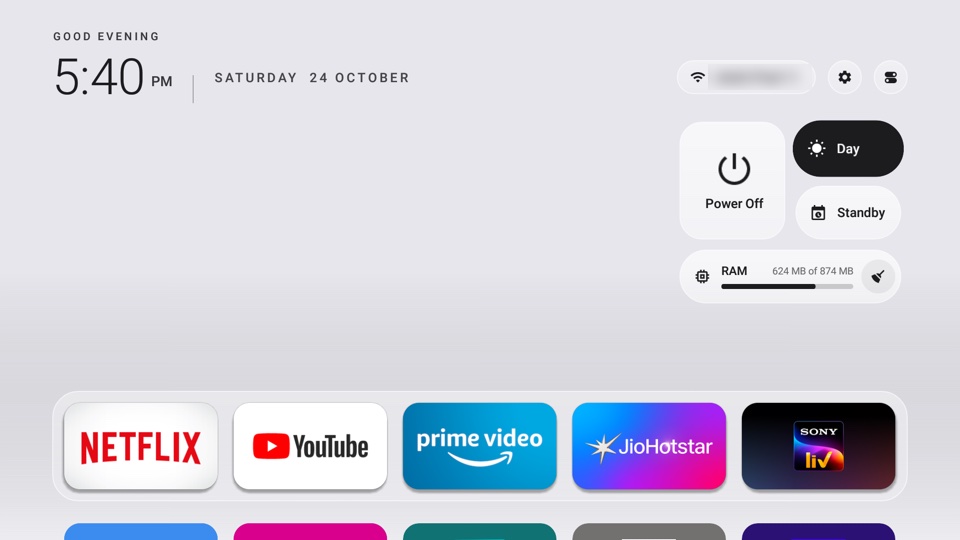
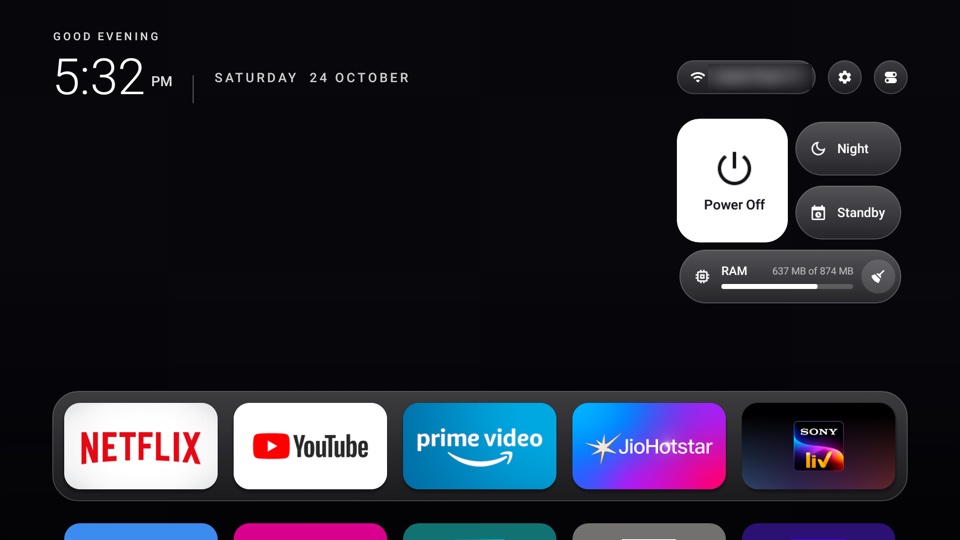
One button next to Settings opens glass tiles for Power Off, Day/Night, Standby and a live RAM bar with Clear RAM.
Standby
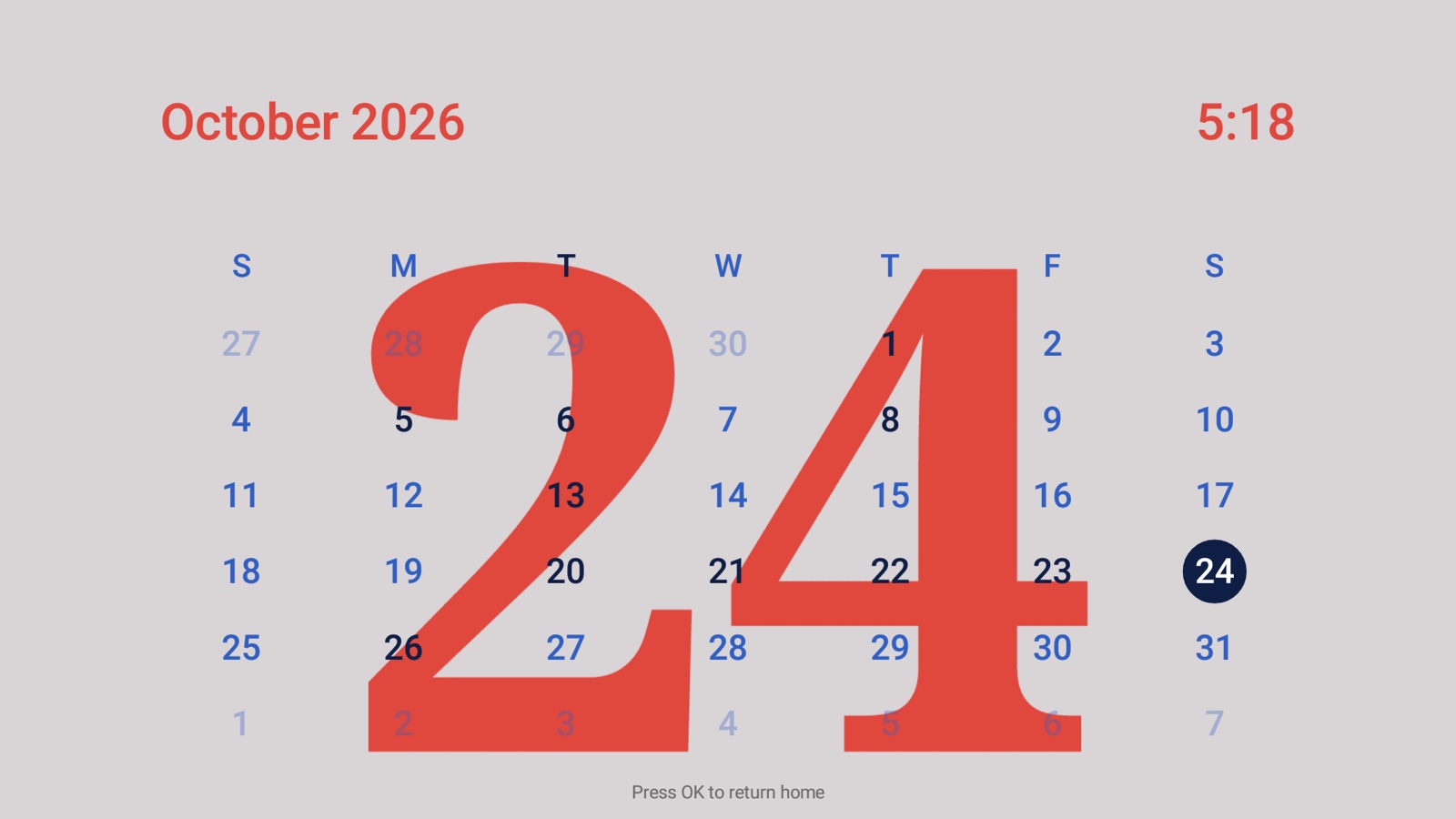
A full-screen calendar and clock, with today's date drawn large behind the month. Press OK to return home.
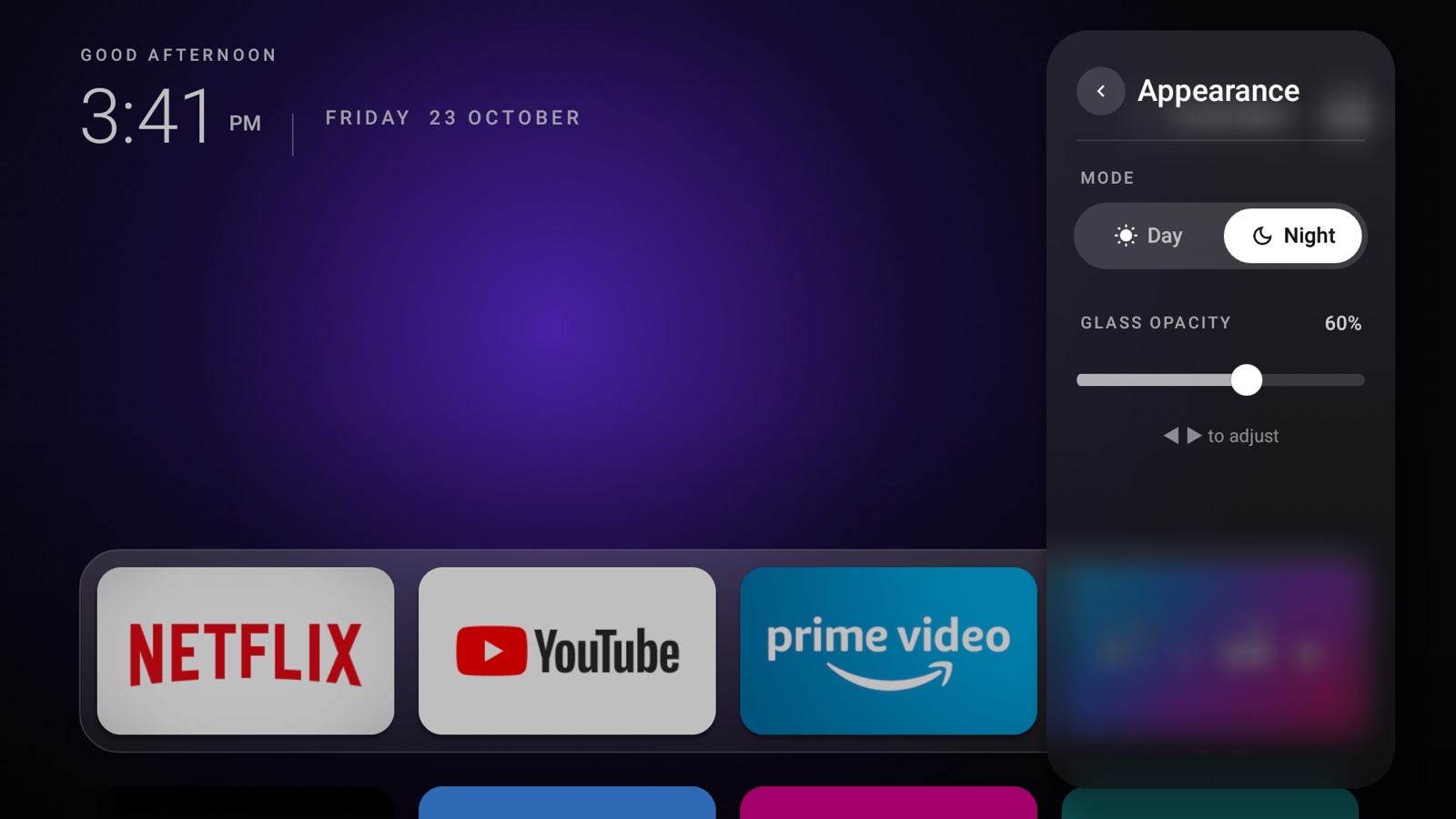
Day and Night
Switch between a dark and a light look, and set how see-through the glass is with a slider. Try the switch at the top of this page.
App size
Small fits five apps in a row, Large shows four bigger tiles. Pick it under Appearance.
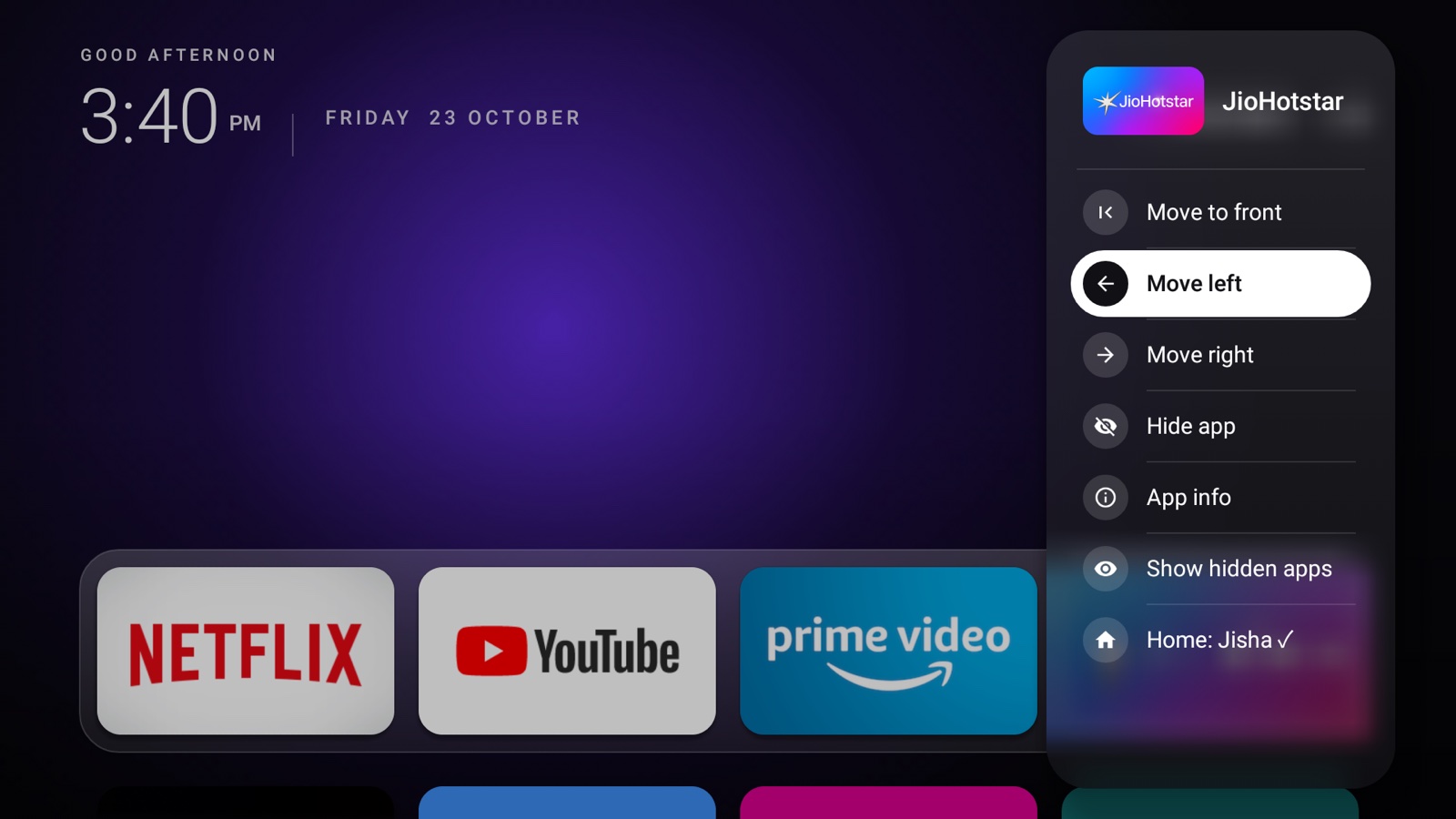
Your order, your apps
Move apps left, right or to the front, hide the ones you never use, and bring them back any time.
Opens on boot
After a restart the TV lands on Jisha by itself. No ads are shown at any point.
Fire OS versions
Jisha needs Android 5.1 or newer, and two permissions granted once over ADB from a computer.
Fire OS 5.2.9.5
Fire TV Stick 2nd Gen (2016), Android 5.1. Built and tested on this device: Home button, boot, Recent Apps and Wi-Fi all work.
Fire OS 5.x
Other Fire OS 5 devices on Android 5.1, such as the Fire TV 2nd Gen box. Same system, but not tested yet.
Fire OS 6, 7, 8
Newer sticks may handle the Home button and logs differently. Untested, so Jisha may need changes there.
Get Jisha on your Fire TV
You need a computer with ADB on the same network as the TV.
Turn on ADB
On the TV: Settings → My Fire TV → Developer Options → ADB Debugging → On. Note the TV's IP address under About → Network.
Install
adb connect <TV-IP>adb install Jisha.apk
Grant two permissions
adb shell pm grant com.jisha.launcher android.permission.READ_LOGSadb shell pm grant com.jisha.launcher android.permission.DUMP
Then open Jisha once from the apps row.